What is ARTEM-IS?
The goal of the ARTEM-IS is to use insights derived from systematic reviews and guidelines for good checklist design to create a dynamic and user-friendly web application which guide EEG researchers through creating standardised and detailed account of their methods.
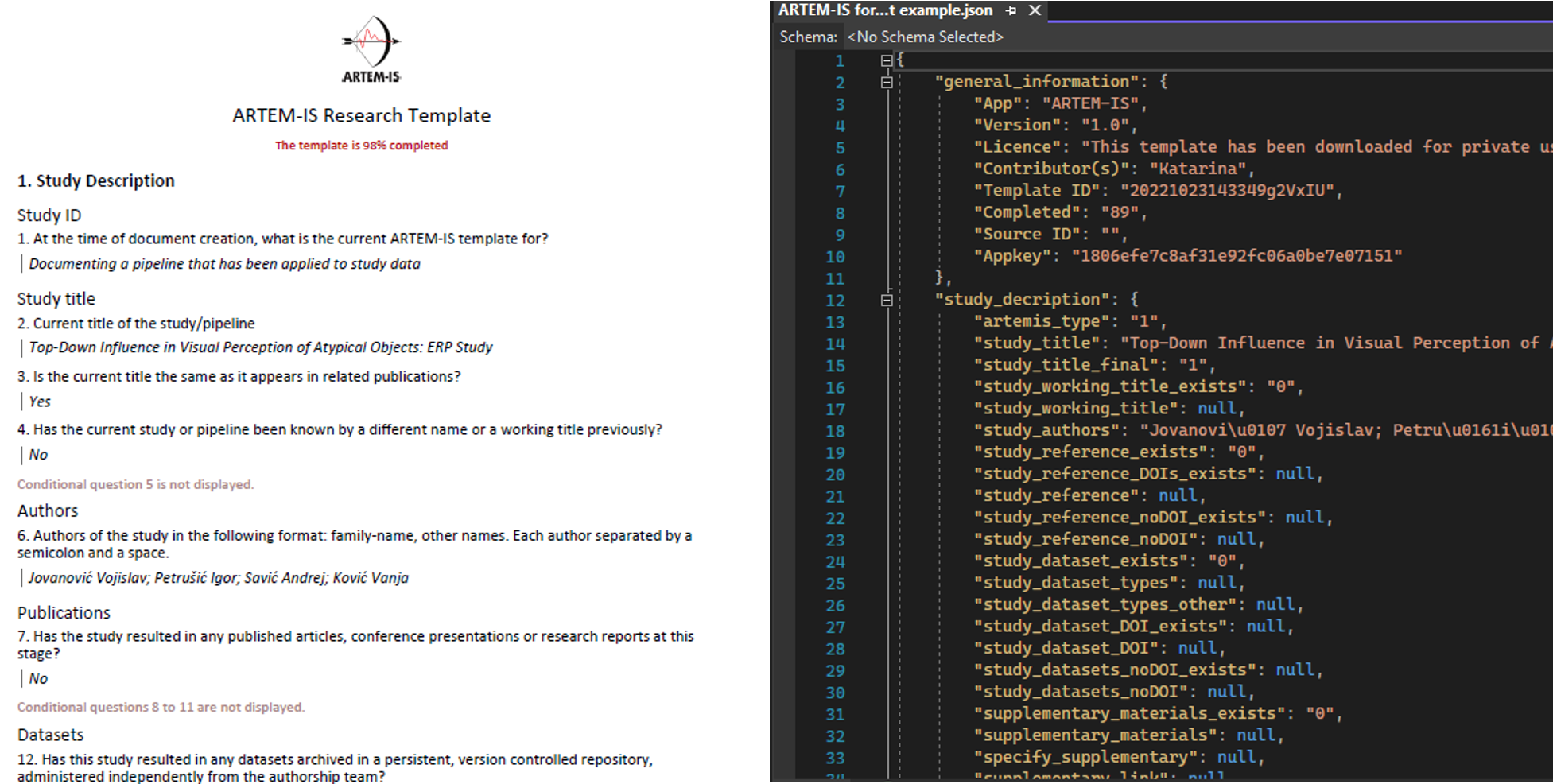
On the input side, ARTEM-IS web application is a questionnaire whose contents are tailored to a given study depending on the answers provided, and on the output side, ARTEM-IS provides both a human-readable report (online, DOCX, PDF) and a more machine-friendly JSON file.
ARTEM-IS is free and open, made and maintained by EEG researchers for EEG researchers, supported by the INCF (ARTEM-IS development is coordinated by an
INCF Working Group) and COST (development of ARTEM-IS is facilitated by the
COST Action EEG101 Working Group on Reporting Standards).
Currently, ARTEM-IS has launched the first of its tools, ARTEM-IS for ERP, which supports describing a relatively simple ERP experiment, including most of its core methodological aspects (study description, experimental design, hardware, data acquisition, pre-processing, measurement, visualisation, additional comments). ARTEM-IS tools for more complex ERP experiments as well as for other subfields of EEG may follow.
What can ARTEM-IS be used for?
Some use cases for ARTEM-IS Reports as a study author:
- Attach downloaded PDF and JSON Reports as supplements to a publication and provide a comprehensive overview of EEG-specific methodological decisions
- Keep track of relevant methodological decisions to be reported as you make them rather than reconstruct them from code and memory at the time of manual submission
- Use the Reports as memory aid when writing a manuscript
- Plan more detailed and complete pre-registrations
- Save a record of your EEG acquisition setup (such as online filters), a typical preprocessing pipeline, or measurement procedures commonly used in your lab, so that you can easily find the settings when you need them, or so that you can share them with your team
In addition, as a reviewer or editor, you benefit from having an immediate overview of how much and which EEG-specific information is (not) available. As a researcher building on other's work, you benefit from more detailed accounts of methods for replications, extensions, reviews, and meta-analyses. Finally, as a teacher or mentor training of the next generation of EEG researchers, you can use ARTEM-IS to help them learn which methodological information constitutes an integral part of research reports.
Quick Tips
Register an account
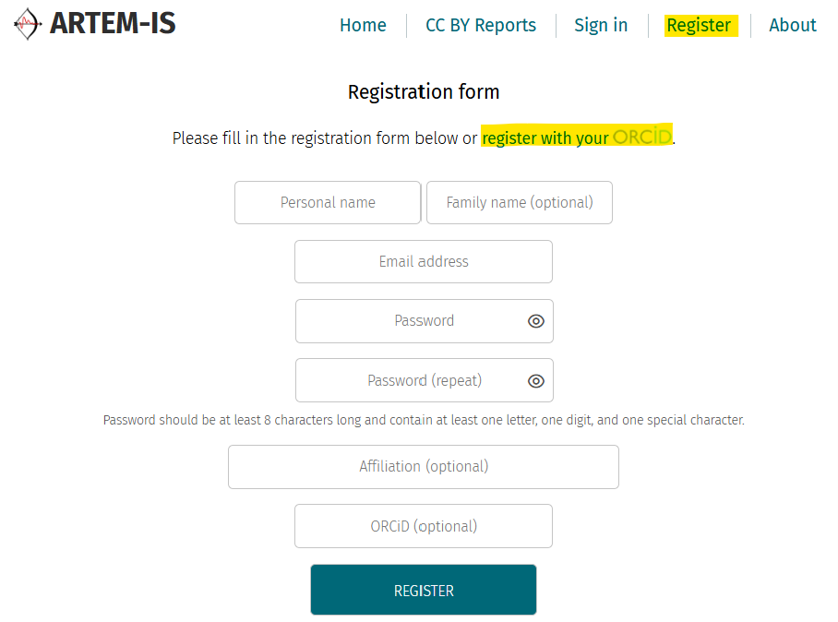
While you don't need an account to browse public Reports, you will need one to add your own Reports or collaborate with others. Click Register and choose between email-address-based or ORCID-account-based registration to create a free account.
Browse and view public reports
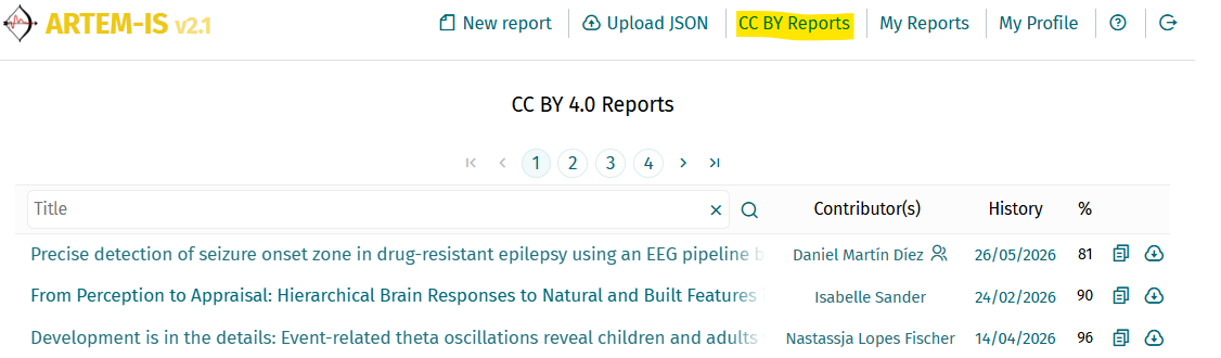
On the CC BY Reports page you can see Reports made available by others, the names of the Contributors (click on the Report creator to see the full list), percent of completion of each, and access editing history by clicking on the date of last edit. You can download these Reports in any format or you can create a copy to edit and adapt for your own study. Hover over a report to see study authors and its abstract.
Create a new online report and fill it in
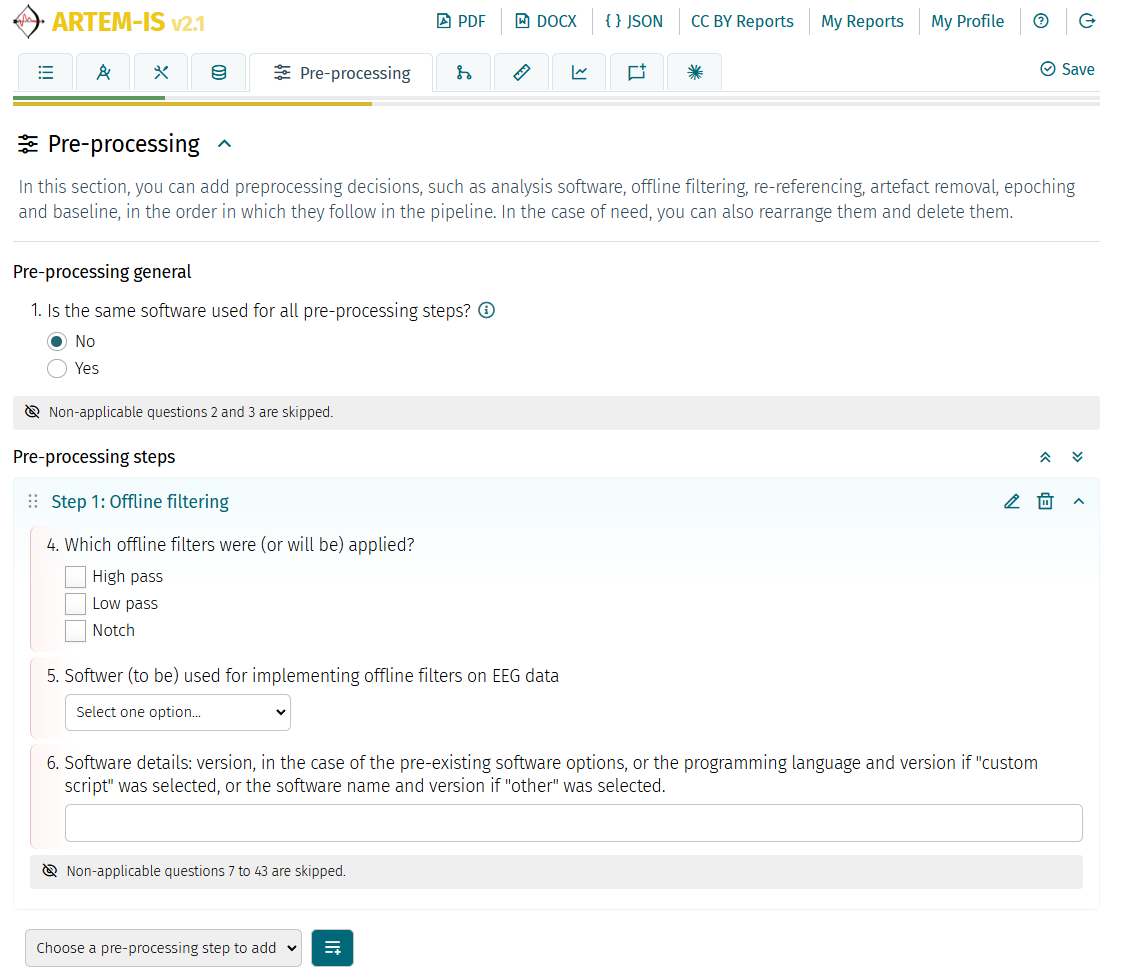
If you click on a New Report, you will start a completely blank ARTEM-IS Report. Click on Tabs or navigation buttons in the bottom to find different sections and fill in answers to each question. If you see an "info" sign, this is additional guidance on how to provide an answer. To save your time, many of the questions will be shown or hidden depending on the answers to preceding questions. This way, while the whole standard is comprehensive, you will only interact with the sections relevant to your study.
Changes to the report are saved automatically within 5 seconds after the last edit. If you try to leave the page while saving is in progress, you'll see a warning. You can also click the Save icon in the top right corner at any time to manually save your changes.
Track completion of reports
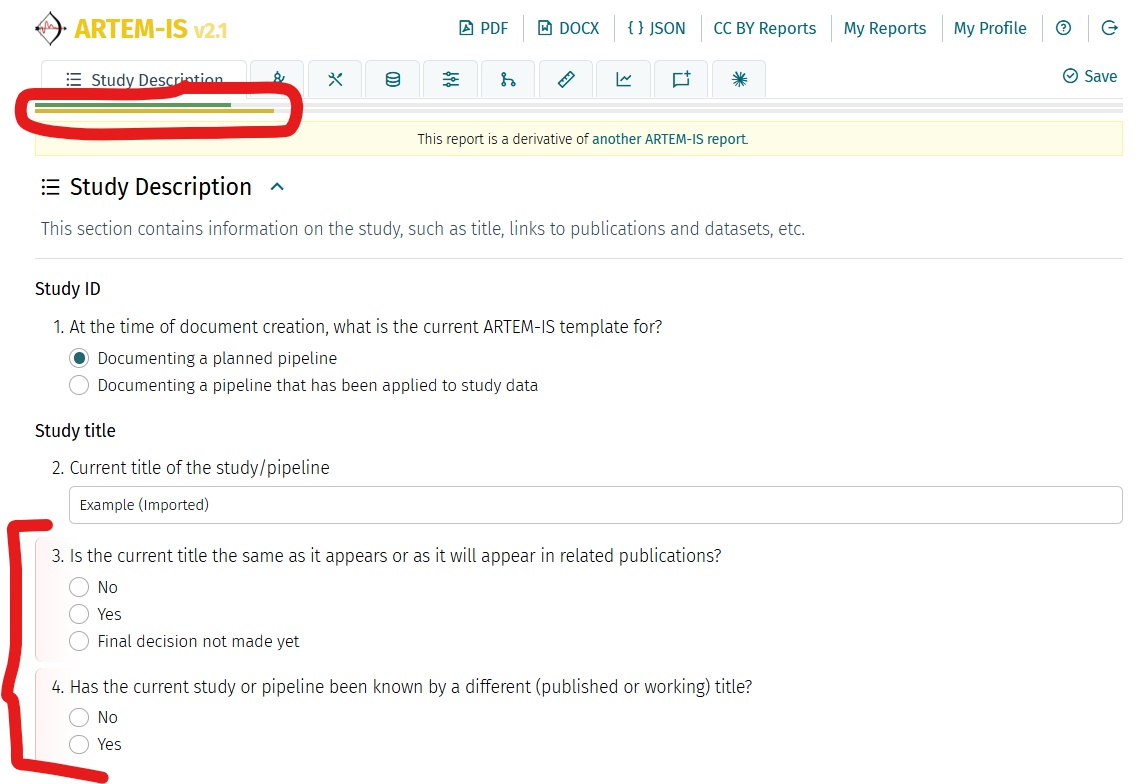
Questions you haven't answered yet will be clearly marked in red in the online form (see figure above), as well as in the downloaded PDF and DOCX Reports. In addition, you will see two progress bars on top (yellow and green lines in the figure above) – one for the whole report, and one for the current section. Clicking on each will take you to the first unanswered question in the report or the current section. Percent of completion is also visible on the pages where your Reports or CC BY Reports are listed, next to each Report, as well as in downloaded Reports.
Only the visible questions (i.e., questions relevant to a study) count towards the percent of completion and are shown in the downloaded Reports.
Collaborate
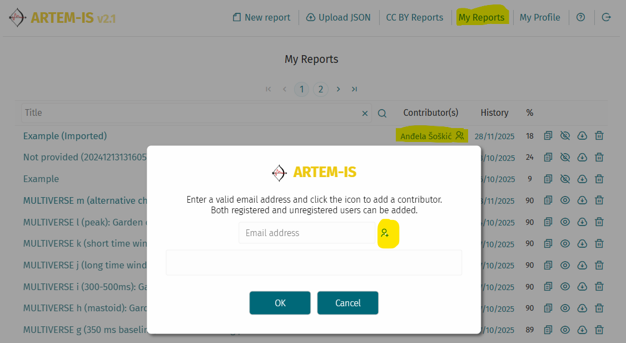
ARTEM-IS is designed with collaboration in mind. You can add or remove other contributors to your Reports by clicking on your name next to a Report in the section My Reports, or you can share downloaded private Reports with your collaborators. This way, you can share lab practices, plans for research, work on documenting completed and studies in progress.
Make your report publicly available
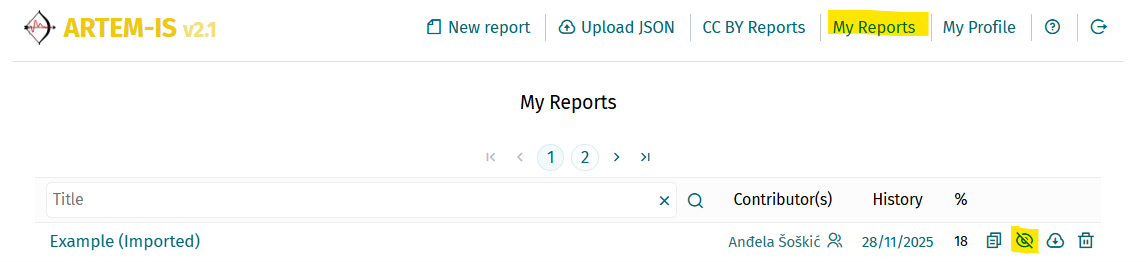
Once you are ready, you can make a report publicly available with a CC-BY license by clicking on the eye icon next to a Report in the My Reports section. If you change your mind, you can make it private again using the same button.
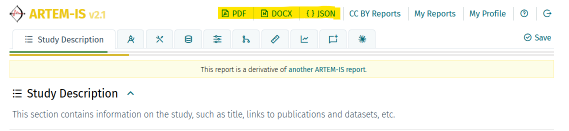
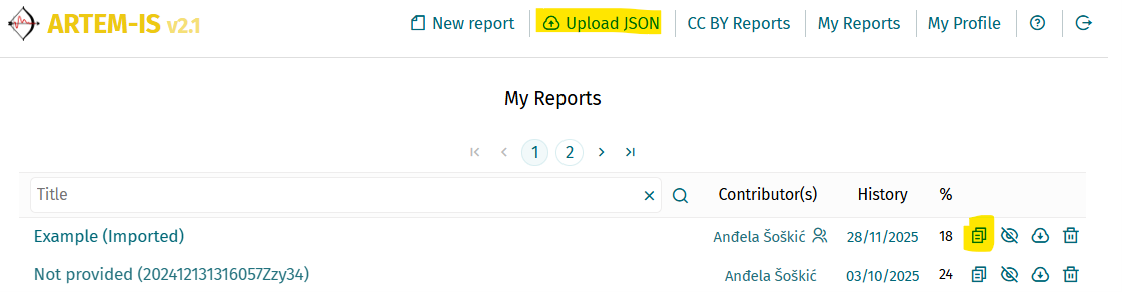
You can use Upload JSON to create a copy of the JSON Report (a Derivative Report).
Download a report for sharing elsewhere
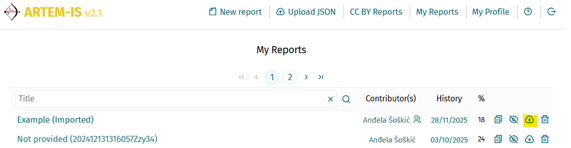
You can download a Report using a button next to when looking at a list of Reports, or by clicking on the appropriate button on the top bar, if an online Report is open.
Interpreting Reports
The "human-friendly" PDF and DOCX versions are immediately legible and have the same "question and answer" format as the online Reports, with additional metadata at the end such as contributor names. For interpreting JSON Reports, please consult the User Manual at the end of this introduction.
Using an existing report to save time on a new one
A lot of the information will overlap from one study to another, starting with the acquisition settings. You only need to fill these things once. You can use "half-baked" Reports as templates for building new ones, or you can create copies of your previous Reports and edit them (probably less safe in most cases as you may inadvertently leave some information that does not apply to the new study).
Copies of a Report can be created in two ways: (1) by clicking on the copy icon next to a Report visible in My Reports or CC BY Reports, and (2) by uploading a downloaded JSON file with a Report back to the web application.
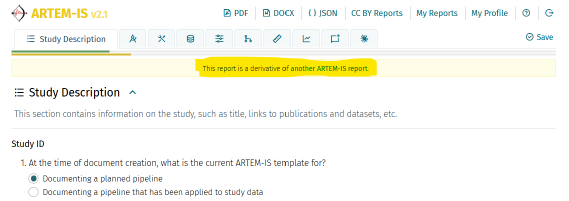
Any Reports that are made by building on an existing copy will be marked as Derivative Reports and a link to the original will be provided (though the link will be inaccessible if the original report is private and you don't have access to it).
Describing studies with multiple components
One ARTEM-IS Report is designed to describe one preprocessing pipeline with one measured component. This is because different components may have separate preprocessing as well, not only measurement. Sometimes even one component can be extracted from data processed in different ways.
To describe a study with multiple components, fill all parts of the Report which are the same across all pipelines, and then make copies for each pipeline. Do not forget to change the ARTEM-IS Report title so that each Report will have a unique name for easier browsing. As study titles are typically long, we recommend stating the variation at the start of the ARTEM-IS Report name (e.g., "P300: title of the study" and "N1: title of your study").
Find out more
The User Manual with detailed guidance on all features is available on
THIS LINK.
The paper which describes ARTEM-IS for ERP and what you can do with it is available
HERE.
The rationale for why a tool like ARTEM-IS is useful and the principles on which it is built is published
HERE.
Contribute
If you like ARTEM-IS and you would like to see it improved or used widely, please consider becoming a member of the
EEG101 Cost Action.
If you notice a bug or have a suggestion, please post an issue on
GitHub.
 ARTEM-IS